
You scroll through Snapchat Spotlight and find a video that is genuinely great. Maybe it is a cooking hack that you want to try later. Maybe it is a funny clip you want to send to a friend. Maybe it is a travel video from a place you are planning to visit. Whatever it is, you want to keep it.
You try to save it. Snapchat lets you do that, sometimes, depending on the creator’s settings. But when you do save it, you get the video stamped with a Snapchat watermark right across the frame. A big logo. The app branding. A tag that says where the video came from, plastered in a position you cannot move or remove.
That watermark is fine if you are just watching it again for yourself. But the moment you want to use the video in any other way — share it in a group chat, post a clip somewhere, use it as reference material, or just keep it in a clean personal archive — that watermark is genuinely annoying.
This is not a new problem. Social media platforms have been adding watermarks to downloaded content for years. TikTok does it. Instagram does it on Reels. Snapchat does it on Spotlight clips. The reason is straightforward from the platform’s perspective: they want their branding to travel with the content so that wherever the video ends up, it points back to them.
That makes sense as a business decision. It is just inconvenient for users who want a clean file.
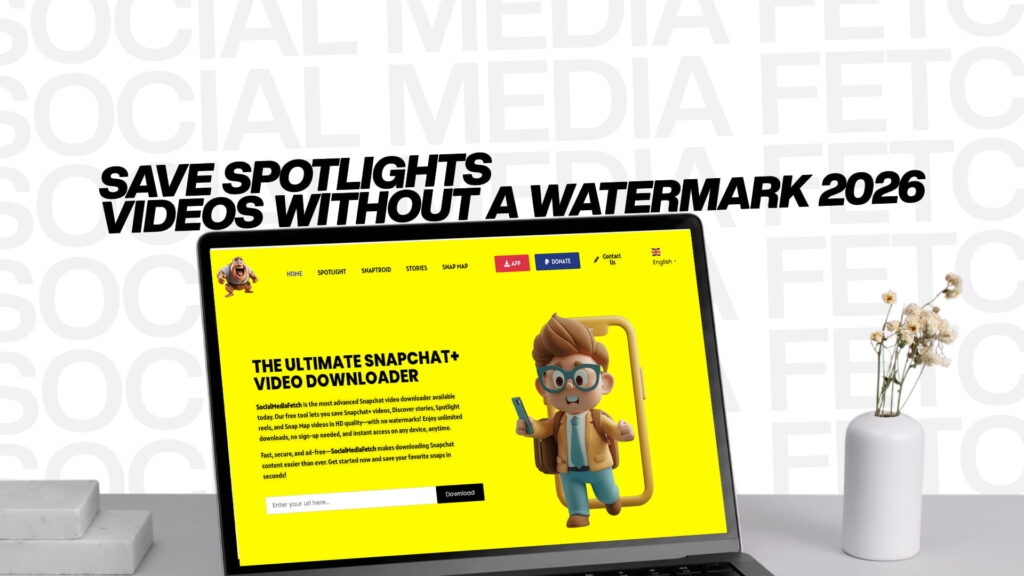
In 2026, there is an easy, free solution to this. SocialMediaFetch is an advanced online downloader that lets you save Snapchat Spotlight videos without any watermark. No app to install. No account to create. No fee to pay. Just the video, clean and complete, saved to your device.
This guide covers everything you need to know — how Spotlight works, why watermarks appear, how SocialMediaFetch removes them, and exactly how to download any Spotlight video in minutes.
Understanding Snapchat Spotlight in 2026
Before getting into the downloading process, it helps to understand what Snapchat Spotlight actually is and why people spend so much time on it.
Spotlight is Snapchat’s short-form video feed. It was launched in late 2020 as a direct response to TikTok’s explosive growth. The idea was simple: give Snapchat users a dedicated space to discover entertaining short videos from creators they do not necessarily follow, powered by an algorithm that surfaces the most engaging content.
It worked. Spotlight grew fast. Snapchat reported tens of millions of daily active users engaging with Spotlight content within months of its launch, and the numbers have continued to grow since then.
What makes Spotlight different from regular Snapchat Stories is the discovery element. Regular Stories are shared with your friends and followers. Spotlight is more like a public stage. Creators post videos to Spotlight hoping to reach a wide audience beyond just their friend list. The algorithm decides which videos get pushed to more people based on engagement metrics — views, replays, shares, and how long people watch.
This means Spotlight has become a place where genuinely creative, entertaining, and useful content gets discovered. Short cooking tutorials. Quick life hacks. Travel clips from places around the world. Fitness tips. Comedy sketches. Music performances. Motivational content. The range is wide.
And because the content is publicly distributed through an algorithm, you regularly come across videos from creators you have never heard of — content you stumbled upon completely by chance and want to hold onto.
That is the core reason people want to download Spotlight videos. The content is good, it is hard to find again once you scroll past it, and keeping a local copy is simply the practical thing to do.
Why Snapchat Adds a Watermark to Downloaded Videos
Let’s be direct about why this happens.
When you save a Snapchat Spotlight video using the in-app save option, Snapchat adds its watermark to the file. The watermark typically includes the Snapchat ghost logo and sometimes the creator’s Snapchat username. It sits in a fixed position on the video frame.
There are a few reasons Snapchat does this:
Brand visibility. Every video that leaves the app and gets shared somewhere else carries the Snapchat logo with it. This is free advertising. When someone sees a Snapchat-watermarked video on WhatsApp or shared in a group chat, they see the brand.
Creator attribution. The watermark often includes the creator’s username, which means that if their video goes viral on another platform, there is a trail leading back to their Snapchat profile. This was meant to benefit creators, though many creators actually find watermarks on their content inconvenient when they want to repurpose their own videos.
Platform retention. Watermarks make downloaded content look like Snapchat content. Someone watching it elsewhere might think “oh, I should download Snapchat to see more of this.” It is a soft nudge toward the platform.
Discouraging casual downloading. A visible watermark makes the saved file feel less clean and useful. For some people, that is enough of a deterrent that they skip saving altogether and stay inside the app — which is exactly what Snapchat wants.
None of this is sinister. It is just commercial logic. The problem is that it creates friction for people who want to save content for perfectly reasonable personal reasons.
The good news is that third-party tools like SocialMediaFetch retrieve the original video file from Snapchat’s servers before any watermark overlay is applied. The result is a clean, watermark-free download.
What Is SocialMediaFetch?
SocialMediaFetch is one of the most capable social media download tools available in 2026. It is a web-based platform, which means you use it through your browser — no installation required, no software to update, no permissions to grant on your device.
It was built to handle video and image downloads from multiple social media platforms, but its Snapchat capabilities are particularly strong. Where many downloaders are limited to one type of Snapchat content, SocialMediaFetch handles the full range:
Snapchat Spotlight — the short-form public video feed, which is the focus of this guide.
Snapchat Stories — both public Stories from creator accounts and Stories from profiles that have made their content publicly accessible.
Snap Map — location-based content posted publicly to the map feature. Travelers, journalists, and researchers often want to save clips from specific locations, and SocialMediaFetch can retrieve these.
Public Snapchat profiles — video and media content from public-facing Snapchat creator accounts.
The key features that make SocialMediaFetch stand out from similar tools:
No watermark on downloads. This is the headline feature. Videos downloaded through SocialMediaFetch come through without the Snapchat watermark that you would get using the in-app save option.
No registration required. You do not need to create an account, enter your email, or log in to anything. The tool works immediately, for anyone, without any sign-up barrier.
No cost. SocialMediaFetch is free to use. There is no premium tier required to access watermark-free downloads.
Works on all devices. Desktop, laptop, tablet, Android, iPhone — SocialMediaFetch runs in the browser, so it works on whatever device you are using.
Fast processing. Links are processed quickly. You are not sitting around waiting for minutes while a server churns.
High-quality output. The tool retrieves the highest available quality version of the video, not a compressed or degraded version.
Visit SocialMediaFetch to try it for the first time. The difference between a watermarked in-app save and a clean SocialMediaFetch download is immediately obvious.
How to Save Snapchat Spotlight Videos Without a Watermark — Full Step-by-Step Guide
The process is simple enough that most people get it right on the first try. Here is the complete walkthrough.
Getting the Spotlight Video Link
This is the one step that trips people up occasionally, so it is worth covering in detail.
You cannot download a Spotlight video without its link. Here is how to get it:
On the Snapchat mobile app (most common method):
Open Snapchat and navigate to the Spotlight tab. Scroll until you find the video you want to download. Tap on the video to open it in full screen. Look for the share icon — it usually looks like an arrow pointing upward or to the right, or three connected dots. Tap it. In the share menu that appears, look for “Share via…” or “Copy Link” or “Copy URL.” Tap “Copy Link.” The link to that Spotlight video is now in your clipboard.
If you do not see a copy link option directly, look for “Share to…” and then scroll through the options to find one that lets you copy the link rather than sharing through a specific app.
On a desktop browser:
If you are browsing Snapchat’s web interface at snapchat.com, navigate to the Spotlight section and open the video. The URL in your browser’s address bar is the direct link to that Spotlight video. Click the address bar, select all, and copy.
One important note: Not every Spotlight video has sharing enabled. Some creators disable the share option on their content. If you cannot find a share or copy link option on a particular video, that creator has turned it off. In that case, there is no link to copy and no way to download that specific video.
Downloading With SocialMediaFetch
Once you have the link copied, the rest takes about thirty seconds.
Step 1: Open your browser and go to SocialMediaFetch.
Step 2: On the SocialMediaFetch homepage, you will see a large input field near the top of the page. It is clearly labeled and waiting for a link.
Step 3: Tap or click inside the input field and paste the Snapchat Spotlight URL you copied. On most devices, you paste by long-pressing and tapping Paste (mobile) or pressing Ctrl+V / Cmd+V (desktop).
Step 4: Tap or click the Download button next to the input field.
Step 5: SocialMediaFetch processes the link. This usually takes between five and fifteen seconds. It is retrieving the video file from Snapchat’s servers.
Step 6: Once processing is complete, you will see a preview of the video and one or more download options. If quality options are available, you can choose between them. Select your preferred option and tap Download.
Step 7: The video file saves to your device. On desktop, it typically goes to your Downloads folder. On Android, it usually saves to your Downloads folder or Gallery. On iPhone, it goes to your Files app.
That is the complete process. No extra steps, no redirects, no confusing menus.
Downloading on Android: Detailed Guide
Android is the most common mobile platform for this kind of tool, and SocialMediaFetch works smoothly on Android devices.
Open the Snapchat app and find your Spotlight video. Tap the share icon and copy the link as described above. Open your Android browser — Chrome is most common, but Firefox or any other browser works fine. Go to SocialMediaFetch. Paste the link and tap Download.
When the download completes, the file will typically appear in your Downloads folder. You can access this through your Files app. From there, you can move the video to your Gallery if you want it to appear alongside your photos and camera videos.
Some Android devices will show a download notification in the notification tray as the file saves. You can tap that notification to open the file directly once it is done.
If you are downloading multiple videos in a session, they will all appear in the same Downloads folder, timestamped by when they were saved. Renaming them immediately after downloading is a good habit if you want to keep things organized.
Downloading on iPhone (iOS): Detailed Guide
iPhone handles browser downloads a little differently from Android, so it is worth walking through specifically.
Copy the Spotlight video link from the Snapchat app the same way as described above. Open Safari (this works best on Safari for iOS because of how file downloads are handled on Apple devices). Go to SocialMediaFetch. Paste the link and tap Download.
When SocialMediaFetch presents the download option, tap the download button for the video. On Safari, this will trigger a download to your iPhone’s Files app. You will see a download indicator in the browser’s toolbar — a small arrow icon near the top right of the screen. Tap it to see download progress.
Once complete, the video is in your Files app under the Downloads folder (iCloud Drive > Downloads or On My iPhone > Downloads, depending on your settings).
To move the video to your Photos app: open Files, find the downloaded video, long-press it, and tap Share. Then select “Save Video” from the share options. It will be added to your Camera Roll.
If you are using Chrome on iPhone instead of Safari, the process is slightly different. Chrome on iOS may open the video in a browser preview rather than saving it directly. If that happens, long-press the video preview and look for a “Download” or “Save to Files” option.
Using SocialMediaFetch on a Desktop or Laptop
The desktop experience is the most straightforward of all. Large screen, easy copy-paste, downloads go straight to a Downloads folder.
If you are browsing Snapchat on the web at snapchat.com, copying the URL from the address bar is the easiest way to get the link. If you found the video on your phone and want to download it on your desktop, you can use a tool like your phone’s note-taking app to paste and send the URL to yourself, or copy it through a browser sync feature if your phone and desktop use the same browser.
Open SocialMediaFetch in your desktop browser. Paste the URL. Download. The file appears in your standard Downloads folder and can be moved, renamed, and organized from there.
Desktop downloads are also useful when you want to do anything with the video beyond just saving it — editing it, using it in a presentation, adding it to a video project. Having the file on a computer means it is ready to work with immediately in any software.
Saving Snapchat Stories Without a Watermark
Spotlight is the main focus of this guide, but SocialMediaFetch handles Snapchat Stories downloads just as effectively, and the process is identical.
Snapchat Stories from public creator accounts and public profiles are accessible without being logged into Snapchat. If a creator has a public Story, you can share the link to it the same way you share a Spotlight link.
Some creators publish their Stories publicly specifically because they want wide distribution. Fitness influencers, chefs, travel creators, news outlets — many of them use Snapchat Stories as a content channel alongside Instagram and TikTok. Their Stories are publicly viewable and shareable.
To download a public Snapchat Story using SocialMediaFetch, copy the link to the Story from the share option in the app or from the URL on Snapchat’s website. Paste it into SocialMediaFetch the same way as a Spotlight link. Download. Same clean, watermark-free result.
This makes SocialMediaFetch useful beyond just Spotlight content. It is a general-purpose Snapchat download tool that covers multiple content types from a single interface.
Snap Map Downloads: A Feature Most People Do Not Know About
One of the more interesting capabilities of SocialMediaFetch is Snap Map support.
Snap Map is a feature inside Snapchat that shows publicly shared Snaps from locations around the world in real time. If someone posts a public Snap and includes their location, it appears on the map. You can zoom into any part of the world and see what people are posting from that location right now.
This is used by journalists covering live events, researchers documenting situations in real time, travelers looking at what a place is actually like before visiting, and just curious people who enjoy watching what is happening in different corners of the world.
When you find a Snap Map video that you want to save — a news event, a cultural moment, a specific location — SocialMediaFetch can download it just like a Spotlight clip. The process is the same: find the share or copy link option on the Snap Map content, paste the link into SocialMediaFetch, and download.
This is a less commonly discussed use case but a genuinely useful one, especially for people who use Snapchat for anything beyond casual social browsing.
Why Watermark-Free Downloads Matter
The difference between a watermarked download and a clean one might seem minor until you actually try to use the file for something.
Consider a few real scenarios:
You save a short cooking technique video from Snapchat Spotlight to your phone. You want to show it to a family member while you are cooking together. You cast it to the TV. On a big screen, a Snapchat watermark across the corner of the frame is distracting and looks amateur. A clean file just looks like a cooking video.
You run a small food blog and you want to share a recipe technique you saw on Spotlight with your audience, properly crediting the original creator. Sharing a watermarked video from a different platform looks messy and unprofessional in your own content feed. A clean video, properly credited in your caption, looks much better.
You are a teacher and you found a short science demonstration on Snapchat that would work perfectly as a classroom example. Projecting a video with a social media watermark on it in a classroom setting looks strange. A clean file fits more naturally into a lesson.
You collect travel inspiration content and you found a stunning drone shot from a city you are planning to visit. You want it in a personal folder of visual references. A watermarked video in that folder breaks the visual consistency.
None of these are unusual situations. They are just people wanting to use content in normal, reasonable ways. The watermark is not a major obstacle in any of these cases, but it is a small friction that degrades the experience. Removing it is simply the better option when you can.
SocialMediaFetch vs. Other Snapchat Downloaders
There are other tools that claim to download Snapchat content. It is worth being honest about how they compare.
Many of the downloaders you find through a quick Google search share a few frustrating qualities. They redirect you through multiple pages before you reach the actual download. They trigger pop-ups or open new tabs to ad-heavy pages. Some ask you to complete a survey or human verification before the download becomes available. A few require you to install a browser extension or app. And some simply do not work reliably — the link processes, a download starts, and the file is corrupt or empty when it arrives.
SocialMediaFetch avoids all of this. The design philosophy is straightforward: paste a link, get a file. No detours, no pop-ups, no software installs, no accounts. The download that comes out is a real, playable, full-quality video file.
That reliability is genuinely rare among free download tools, and it is the main reason people who try SocialMediaFetch tend to keep using it rather than going back to searching for alternatives.
It also handles a broader range of Snapchat content than most competitors. Many downloaders only work on one content type — just Stories, or just Spotlight. SocialMediaFetch covering Spotlight, Stories, and Snap Map from a single interface makes it the more complete solution.
Organizing Your Downloaded Snapchat Content
Downloading is the easy part. Staying organized is where most people fall short.
If you download Spotlight videos regularly, a system for organizing them saves a lot of time and frustration later.
Build a folder structure based on content type. Create folders for the categories you save most often. Cooking tutorials. Travel inspiration. Fitness routines. Comedy clips. Whatever matches your interests. When a video lands in your Downloads folder, move it to the right category folder immediately — or at least set aside a few minutes each week to sort through recent downloads.
Rename files descriptively. Downloaded videos from SocialMediaFetch will have filename formats that are based on the source URL or a timestamp. These names tell you nothing useful when you are looking for a specific video six months later. Renaming takes ten seconds per file and saves significant time later. Something like “pasta_carbonara_technique.mp4” is infinitely more useful than “snap_1234567890.mp4.”
Note the original creator when it matters. If you are saving content because you want to credit or reference the original creator later, keep a simple log. A note in your phone or a basic spreadsheet with the video name and the creator’s Snapchat username is enough. This matters if you plan to share any of the content publicly.
Review and delete regularly. Content you saved in January because you thought you might use it and never did does not need to stay on your device forever. A quarterly cleanup of your download folders keeps things manageable and frees up storage space.
Back up anything you genuinely want to keep. If a video is important to you — something you want to keep long-term — back it up to cloud storage or a second device. Downloaded files on your phone or computer can be lost if the device is damaged, stolen, or reset. Anything worth keeping is worth backing up.
The Quality of Downloads From SocialMediaFetch
One thing worth mentioning specifically: SocialMediaFetch retrieves the original quality version of the video from Snapchat’s servers.
This matters because some downloaders apply their own compression during processing. The video that comes out looks slightly softer or blurrier than the original — not enough to be immediately obvious at phone screen size, but noticeable if you watch on a large screen or try to use the clip in any kind of video editing workflow.
SocialMediaFetch does not re-encode the video. What Snapchat has stored is what you get. If the original Spotlight video was uploaded in HD, your download is in HD. If it was a lower-resolution clip, that is what you get — but that is the source material, not a downgrade introduced by the tool.
For anyone who wants to use downloaded Snapchat content in any kind of editing, compilation, or production work, this distinction matters. Starting with the highest available quality source gives you the most flexibility downstream.
What Kinds of Snapchat Spotlight Videos People Save Most
It is interesting to think about the range of content that people actually bother to download. The reasons people save Spotlight content are pretty varied.
Tutorial and how-to content is among the most commonly saved. Cooking techniques, makeup tutorials, DIY repairs, home organization tips, workout demonstrations — anything that is more useful when you can watch it multiple times, at your own pace, without having to find it again inside the app.
Travel and location content gets saved by people planning trips or collecting visual inspiration. A drone shot over a specific city, a street scene from a country you want to visit, a hidden spot shared by a local — this kind of content has value as reference material that extends well beyond the immediate moment of watching it.
Funny and entertaining clips that people want to share with friends who are not on Snapchat. The easiest way to share something from Snapchat to someone who does not use the platform is to download the video and send it through a messaging app they do use.
Music content from artists and musicians who post performances, previews, or clips to Spotlight. Fans often want to save these for offline listening or to share with other fans.
News and event footage from people who happened to be in the right place at the right time. Snap Map in particular surfaces this kind of content — real-time footage from locations where something notable is happening.
Personal projects and creative reference. Designers, filmmakers, photographers, and other creative professionals often build collections of visual reference material. Snapchat Spotlight contains a lot of genuinely creative short-form content that serves as inspiration for their own work.
The common thread across all of these is that people want to use content in ways that extend beyond a single viewing inside the Snapchat app. SocialMediaFetch makes that possible.
A Note on Responsible Use
Downloading content is easy. Using it responsibly requires a bit more thought.
Everything on Snapchat Spotlight was created by a real person who put time and effort into making it. When you download their content, you have a copy of something they made. What you do with that copy matters.
Saving a video for personal use — watching it offline, keeping it as reference material, sharing it with a friend privately — is generally considered acceptable behavior across most social media contexts. Nobody is harmed by someone saving a cooking video to watch again later.
Where things get more complicated is when downloaded content gets republished. Posting someone else’s Spotlight video to TikTok, Instagram, or another platform without credit is content theft, plain and simple. The fact that the tool made it easy to download the video does not change who owns it. The creator still does.
If you share content publicly that you downloaded from Snapchat, credit the original creator. It costs nothing, it is the right thing to do, and creators genuinely appreciate it. It also protects you — republishing content without permission is a copyright issue that can result in content removal or account strikes on whichever platform you post it to.
For private, personal use, download freely and enjoy the content. For anything more public-facing, think about attribution and whether you actually have the right to use it.
Device Storage: Managing Your Downloads Smartly
Something practical that does not get discussed enough: downloaded videos take up space.
Snapchat Spotlight videos are typically short — most are under a minute — but video files are not small. A one-minute HD video might be anywhere from 20 to 100 megabytes depending on the quality and compression. If you download regularly, that storage adds up fast.
A few habits that help:
Watch before you keep. Download the video, watch it once, and then decide whether it is worth keeping. Many things seem worth saving in the moment but are not actually useful enough to keep permanently. Delete what you will not realistically watch again.
Use cloud storage for long-term collections. Rather than keeping hundreds of video files on your phone, store your curated collection in Google Drive, iCloud, Dropbox, or similar. Cloud storage is much cheaper per gigabyte than keeping everything on your device, and it means you can access your collection from any device.
Compress if quality is not critical. For videos you want to keep but where HD quality is not essential — a funny clip you want to send to people, a recipe you will watch in the kitchen — you can compress the file to a smaller size using any basic video tool. Halving the file size is easy and usually barely affects how the video looks on a phone screen.
Set a storage check reminder. Monthly or quarterly, go through your download folders and delete anything you no longer need. It is not glamorous, but it keeps your device running smoothly.
How SocialMediaFetch Handles Different Video Formats and Qualities
When Snapchat stores a Spotlight video on its servers, it keeps different versions of that file — often multiple quality levels depending on how the creator uploaded it and how Snapchat processed it for delivery to different devices and connection speeds.
This is standard practice for any video platform. Serving a full HD video to someone on a slow mobile connection wastes data and causes buffering. So platforms like Snapchat automatically generate compressed versions for slower connections and reserve the higher-quality version for users on fast connections who can handle it.
When you save a video using the in-app option, Snapchat sometimes delivers you a version sized for mobile delivery rather than the original upload. The difference is not always dramatic, but it is there — especially when you watch on a larger screen.
SocialMediaFetch requests the highest available quality version of the video from Snapchat’s infrastructure. When you are presented with download options, you can see what quality levels are available for that specific video and choose accordingly.
For most Spotlight content, the available quality is 720p or 1080p. Some creators who produce more polished content upload at higher resolutions, and when that is the case, SocialMediaFetch can retrieve it. For older or casually filmed content, lower resolutions are sometimes all that are available — and that is a reflection of the source, not a limitation of the download tool.
One practical implication of this: if you are downloading Spotlight content that you plan to use in any kind of editing workflow — putting clips together for a compilation, using a reference video in a production, or even just cropping and trimming — always download the highest quality version available. You can always compress a high-quality file down for a specific use, but you cannot recover quality from a file that was already compressed.
SocialMediaFetch makes it easy to select quality at the point of download rather than getting whatever the platform decides to give you by default. That control is one of the features that separates it from simpler download tools.
Common Mistakes People Make When Downloading Spotlight Videos
Most things that go wrong with the download process come down to a small number of predictable mistakes. Knowing them in advance saves time and frustration.
Copying the wrong link. The share link for a Spotlight video and the share link for a creator’s profile are different things. If you accidentally copy the link to someone’s Snapchat profile rather than the specific video, SocialMediaFetch will not be able to retrieve the video because there is no single video file attached to a profile URL. Make sure you are on the specific Spotlight video when you tap share and copy the link.
Using a shortened or app-redirect link. Some share options within Snapchat produce shortened links that use Snapchat’s own link shortener. These sometimes work with SocialMediaFetch, but full direct links to the content are more reliable. If a shortened link does not process correctly, try opening it in a browser first — the browser will usually redirect to the full URL, which you can then copy from the address bar.
Trying to download private or friend-only content. SocialMediaFetch can only retrieve content that is publicly accessible. If a Story or Spotlight video has been set to a private or friends-only audience by the creator, there is no publicly accessible link to it, and no download tool can retrieve it. This is not a limitation of SocialMediaFetch specifically — it is a fundamental constraint of how content access works online.
Giving up after one attempt. Networks are occasionally unreliable, and Snapchat’s servers sometimes respond slowly depending on server load and your connection quality. If a download attempt times out or fails to process, try once more before concluding the tool is not working. A second attempt usually succeeds.
Not checking where the file saved. On both Android and iPhone, downloaded files do not always appear in the obvious place. Android sends them to Downloads, not Gallery by default. iPhone sends them to Files, not Photos. If you download a video and then cannot find it, check your Downloads folder in the Files app before assuming something went wrong.
Forgetting to rename and organize. This is less of a technical mistake and more of a workflow habit. Every video downloaded through SocialMediaFetch has a filename that is meaningless to you three weeks later. Rename files immediately after downloading. It takes seconds and prevents a lot of confusion.
Final Thoughts
Snapchat Spotlight has a lot of great content. The platform’s algorithm is genuinely good at surfacing videos that match your interests, and in 2026 the range of creators posting to Spotlight covers almost every topic imaginable.
The built-in save option Snapchat offers works, but the watermark it adds is a real drawback for anyone who wants a clean file. It looks fine for quick personal replays, but it is not what you want if you have any other use in mind for the video.
SocialMediaFetch solves this cleanly. Paste the link, download the video, get a watermark-free file at full quality. No account, no app, no cost. It also handles Snapchat Stories and Snap Map content through the same interface, making it the most complete free Snapchat downloader available today.
Whether you are building a collection of tutorial videos, saving travel inspiration, keeping clips you want to share with friends, or just archiving content you stumbled across and do not want to lose, SocialMediaFetch makes the whole process fast and frustration-free.
Visit SocialMediaFetch, paste your first Snapchat link, and see how much cleaner the download experience is compared to the in-app alternative. It takes under a minute, and the difference in output quality is immediate.